
GRUB2: Difference between revisions
No edit summary |
No edit summary |
||
| Line 8: | Line 8: | ||
Boot in to the Live Installer for the OS (probably what you installed the OS from). | Boot in to the Live Installer for the OS (probably what you installed the OS from). | ||
Open gparted from the applications menu | Open gparted from the applications menu<blockquote> | ||
| Line 23: | Line 23: | ||
sudo cryptsetup open /dev/nvme1n1p2 endeavouros | sudo cryptsetup open /dev/nvme1n1p2 endeavouros | ||
</blockquote>Mount the root (/) partition<tabber> | |||
Mount the root (/) partition | |||
<tabber> | |||
|-|Normal = | |-|Normal = | ||
<code>mount /dev/nvme1n1p2 /mnt</code> | <code>mount /dev/nvme1n1p2 /mnt</code> | ||
Revision as of 16:37, 10 June 2026
grub_is_using_legacy_shim_lock_protocol while booting
Problem; : You are using the old GRUB, probably because an upgrade broke or you didn't run grub-install when needed.
EndeavourOS EXAMPLE, commands need to be modified for your distribution, not modifying these will may your PC un-bootable
Boot in to the Live Installer for the OS (probably what you installed the OS from).
Open gparted from the applications menu
Open the console appOPTIONAL : if you have an encrypted drive you need to "open" the drive, so it can be mounted.
In Gparted the correct drive will look like this:
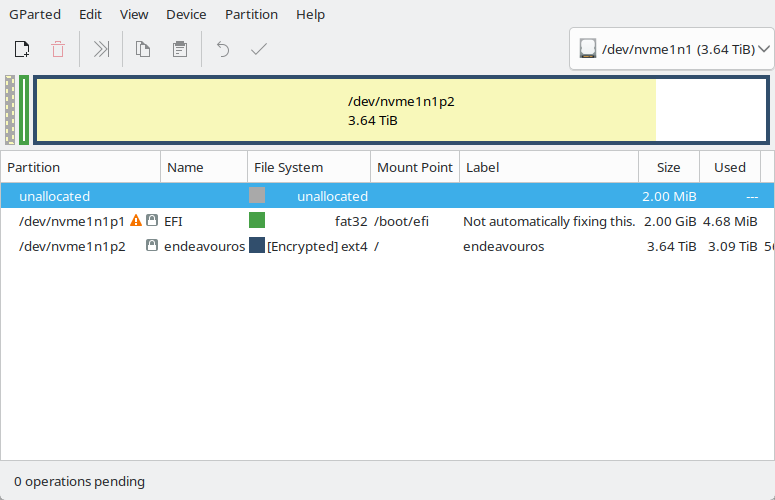
Take the Partition name and put it in to the command sudo cryptsetup open /dev/nvme1n1p2 endeavouros

Mount the root (/) partition
mount /dev/nvme1n1p2 /mnt
mount /dev/mapper/endeavouros /mnt
Also mount the boot (/boot/efi) partitions
mount /dev/nvme1n1p2 /mnt/boot/efi
Enter an Arch chroot, this will only exist on Arch based systems.
arch-chroot /mnt
Reinstall GRUB
grub-install
Press Ctrl+D to exit the chroot, then type reboot to restart the system and everything should work.