
GRUB2: Difference between revisions
No edit summary |
|||
| (8 intermediate revisions by the same user not shown) | |||
| Line 1: | Line 1: | ||
== Secure Boot == | |||
You NEED to set your <abbr title="Basic Input Output System">BIOS</abbr>/<abbr title="Unified Extensible Firmware Interface">UEFI</abbr> settings to make Secure Boot is in "setup" mode, this is different on every motherboard but will usually be under the security settings in the <abbr title="Basic Input Output System">BIOS</abbr> settings. Some MSI motherboards force setup mode by using the options "Delete all platform variables" in the Secure Boot settings. This option is turned off after the next boot so make sure to do this in one sitting. | |||
You also NEED to know which folder stores your boot loader, in the case of EndeavourOS it is either /boot/efi OR /efi, look for the folder in the output of "df -h" Example: | |||
/dev/nvme1n1p1 2.0G 708K 2.0G 1% /boot/efi | |||
Install the tools for signing files | |||
sudo pacman -S sbctl | |||
Create the keys for your system | |||
sudo sbctl create-keys | |||
Enroll all the needed keys in to your EFI, '''do not run this without the -m argument or you can brick your system.''' | |||
sudo sbctl enroll-keys -m -f | |||
Sign all the needed files, at a minimum it needs these first 2 files, if you are using a custom kernel you will need to sign other files, for example "/boot/vmlinuz-linux-zen" | |||
sudo sbctl sign -s /boot/vmlinuz-linux | |||
sudo sbctl sign -s /boot/efi/EFI/boot/bootx64.efi | |||
EndeavourOS users will also probably have this file, other distributions will have similar | |||
sudo sbctl sign -s /boot/efi/EFI/endeavouros/grubx64.efi | |||
Install GRUB on your system with the extra TPM module so Secure Boot will work | |||
sudo grub-install --target=x86_64-efi --efi-directory=/boot/efi --removable --modules="tpm" --disable-shim-lock | |||
Reboot and verify everything is working with | |||
sudo sbctl status | |||
An example of a correct setup: | |||
Installed: ✓ sbctl is installed | |||
Owner GUID: random-data-here | |||
Setup Mode: ✓ Disabled | |||
Secure Boot: ✓ Enabled | |||
Vendor Keys: microsoft builtin-KEK | |||
This command may also give you additional information about quirks on your motherboard that you might need to pay attention to. | |||
If you are getting an error when booting with text similar to "Prohibited by secure boot policy" you can just turn off Secure Boot in your <abbr title="Basic Input Output System">BIOS</abbr> again and troubleshoot what happened. | |||
== grub_is_using_legacy_shim_lock_protocol while booting == | == grub_is_using_legacy_shim_lock_protocol while booting == | ||
| Line 49: | Line 86: | ||
IF you have this file (you see a line containing -rw-r----- 1 root root) then ALSO run the command | IF you have this file (you see a line containing -rw-r----- 1 root root) then ALSO run the command | ||
grub-install --target=x86_64-efi --efi-directory=/boot/efi --removable | grub-install --target=x86_64-efi --efi-directory=/boot/efi --removable | ||
This installs GRUB to the default location your BIOS searches for bootloaders, which is how your PC may be set up instead of using the normal location stored in the EFI memory. | This installs GRUB to the default location your <abbr title="Basic Input Output System">BIOS</abbr> searches for bootloaders, which is how your PC may be set up instead of using the normal location stored in the EFI memory. | ||
Press Ctrl+D to exit the chroot, then type reboot to restart the system and everything should work. | Press Ctrl+D to exit the chroot, then type reboot to restart the system and everything should work. | ||
Latest revision as of 01:02, 7 August 2026
Secure Boot
You NEED to set your BIOS/UEFI settings to make Secure Boot is in "setup" mode, this is different on every motherboard but will usually be under the security settings in the BIOS settings. Some MSI motherboards force setup mode by using the options "Delete all platform variables" in the Secure Boot settings. This option is turned off after the next boot so make sure to do this in one sitting.
You also NEED to know which folder stores your boot loader, in the case of EndeavourOS it is either /boot/efi OR /efi, look for the folder in the output of "df -h" Example:
/dev/nvme1n1p1 2.0G 708K 2.0G 1% /boot/efi
Install the tools for signing files
sudo pacman -S sbctl
Create the keys for your system
sudo sbctl create-keys
Enroll all the needed keys in to your EFI, do not run this without the -m argument or you can brick your system.
sudo sbctl enroll-keys -m -f
Sign all the needed files, at a minimum it needs these first 2 files, if you are using a custom kernel you will need to sign other files, for example "/boot/vmlinuz-linux-zen"
sudo sbctl sign -s /boot/vmlinuz-linux
sudo sbctl sign -s /boot/efi/EFI/boot/bootx64.efi
EndeavourOS users will also probably have this file, other distributions will have similar
sudo sbctl sign -s /boot/efi/EFI/endeavouros/grubx64.efi
Install GRUB on your system with the extra TPM module so Secure Boot will work
sudo grub-install --target=x86_64-efi --efi-directory=/boot/efi --removable --modules="tpm" --disable-shim-lock
Reboot and verify everything is working with
sudo sbctl status
An example of a correct setup:
Installed:      ✓ sbctl is installed
Owner GUID:     random-data-here
Setup Mode:     ✓ Disabled
Secure Boot:    ✓ Enabled
Vendor Keys:    microsoft builtin-KEK
This command may also give you additional information about quirks on your motherboard that you might need to pay attention to.
If you are getting an error when booting with text similar to "Prohibited by secure boot policy" you can just turn off Secure Boot in your BIOS again and troubleshoot what happened.
grub_is_using_legacy_shim_lock_protocol while booting
Problem; : You are using the old GRUB, probably because an upgrade broke or you didn't run grub-install when needed.
EndeavourOS EXAMPLE, commands need to be modified for your distribution, not modifying these will may your PC un-bootable
Boot in to the Live Installer for the OS (probably what you installed the OS from).
Open gparted from the applications menu and search for your drive in the top right hand corner. The correct drive will have at least 2 paritions, a small EFI partition, and a "File System" with EXT4/BTRFS/Encrypted types.
OPTIONAL : IF you have an encrypted drive (LUKS) you need to "open" the drive, so it can be mounted.
In Gparted an encrypted drive will look like this:
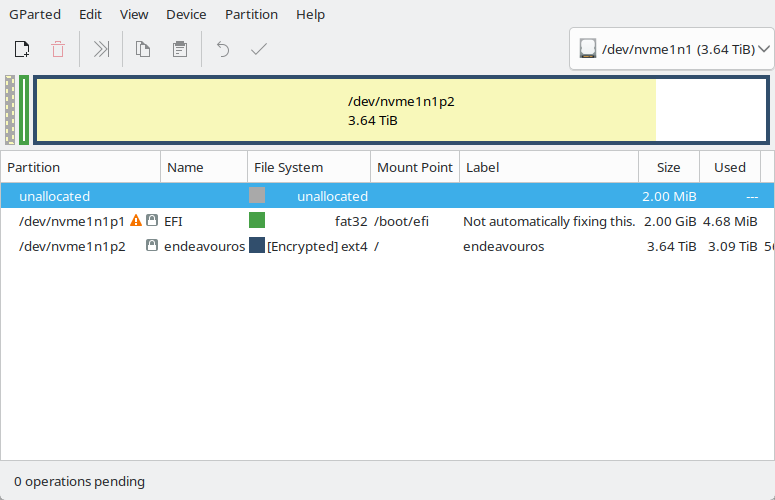
Take the "Partition" value for the LUKS [Encrypted] partition and put it in to this command
sudo cryptsetup open /dev/nvme1n1p2 endeavourosendeavouros can be anything you like as long as you use the same name in the /dev/mapper line below.

Mount the root (/) partition
sudo mount /dev/nvme1n1p2 /mnt
sudo mount /dev/mapper/endeavouros /mnt
Also mount the boot (/boot/efi) partitions
sudo mount /dev/nvme1n1p2 /mnt/boot/efi
Enter an Arch chroot, this will only exist on Arch based systems.
sudo arch-chroot /mnt
Reinstall GRUB
grub-install
Run
ls -la /mnt/boot/efi/EFI/boot/bootx64.efi
IF you have this file (you see a line containing -rw-r----- 1 root root) then ALSO run the command
grub-install --target=x86_64-efi --efi-directory=/boot/efi --removable
This installs GRUB to the default location your BIOS searches for bootloaders, which is how your PC may be set up instead of using the normal location stored in the EFI memory.
Press Ctrl+D to exit the chroot, then type reboot to restart the system and everything should work.